
Online Communications & Payments - Arbor
At Ladywood Primary we use an app called Arbor.
Arbor is used to send out and receive communications (app message and emails) and to collect payment and parental consents.
Newsletters and letters/messages about activities, trips, events etc. will all be sent out using the Arbor app and so it is important that new parents/guardians set-up an account to access the app parent portal as soon as possible after your child joins Ladywood.
Once your child is on roll at Ladywood you will receive an email inviting you to set-up your account and you will be able to download and sign into the Arbor parent portal
This article provides an introduction to the Arbor Parent Portal for guardians and parents, detailing how to log in, navigate the homepage dashboard. It also explains how to switch between multiple children’s profiles.
TOP-TIP In your phone’s app settings, make sure you have notifications for the Arbor app switched on so that you receive notifications when new messages are sent
If you can't find the answer to your question using this article, please contact school.
- Downloading the Parent App
For Android devices:
- Go to your device's Play Store.
- Search for 'Arbor' and tap the top result: "Arbor Parent & Guardian Portal"
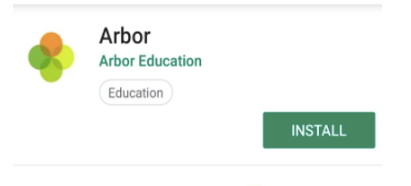
For iOS (Apple) Devices:
- Go to your device's App Store.
- Search for 'Arbor' and tap the top result
2. Logging into the Parent Portal or App
Once you have the app or are on the Parent Portal website, follow these steps to log in.
Important: Your school needs to have enabled the Parent Portal for you to log in. If you haven't received a welcome email or login details, please contact your school directly.
A. First-Time Login (Setting Your Password)
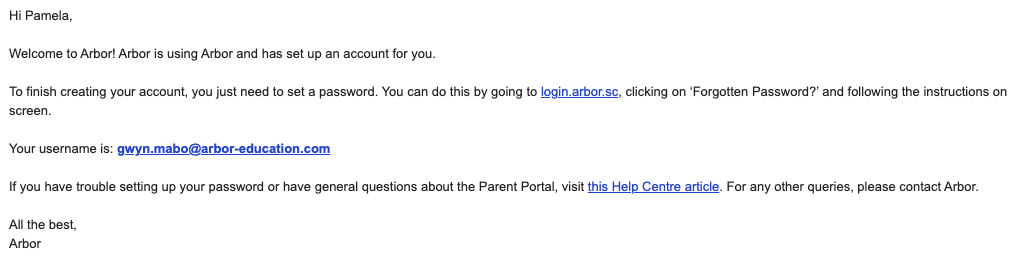
If this is your first time logging in, you'll need to set your password. Your school will send you a welcome email with a link to do this.
- Find the Welcome Email: Look for an Arbor email from school in your inbox.
-
- Tip: If you can't find it, check your junk or spam folder!
- Click the Login Link: Inside the email, click on the unique login link provided. This link will take you to a secure page to set up your account.
- Set Your Password:
- Enter your chosen password into the Password field.
- Enter it again into the Confirm Password field.
- Make sure your password meets the criteria (e.g., length, characters) shown on the screen.
- Click the Set Password button.
- Log In: You'll then be redirected to the login page. Enter your email address (the one your school has for you) and your newly set password, then click Log In.
Your Homepage Dashboard
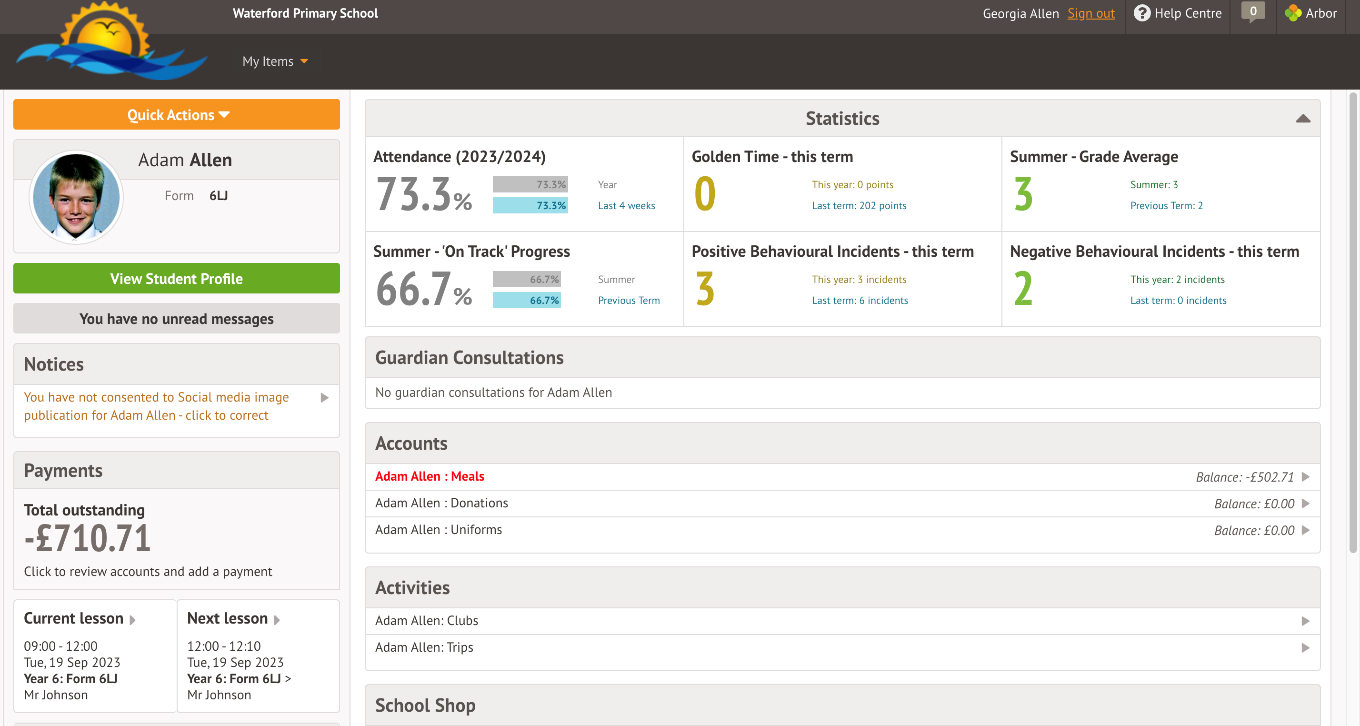
The dashboard is the first screen that you will see. This gives a quick glance of the student’s daily timetable, behaviour points, meals, notices, current attendance and progress.
You can see your in-app messages by clicking this button under your child's photo.
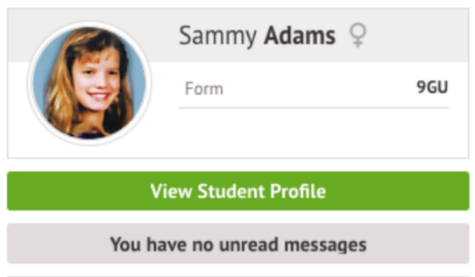
You can return to this page at any time by clicking on the school’s logo or choosing Dashboard from any menu. On the homepage you'll also see sections for:
- Statistics - This shows information about the student's attendance, behaviour and progress statistics for the current term.
- Guardian consultations - The Guardian Consultations section allows guardians to book time for Parents Evening meetings by selecting one of the available slots as per the School's setup.
- Accounts - The Accounts section loads the student's current Meals and other top-up account balances.
- Trips - Sign your child up for trips.
- Clubs - Sign up to standard clubs or Breakfast and After School clubs.
- School Shop - Make purchases for items.
Being a guardian for multiple children - switching students
If you are the Primary Guardian for more than one child in the school, you can access and view each child through the same portal.
On the Parent Portal
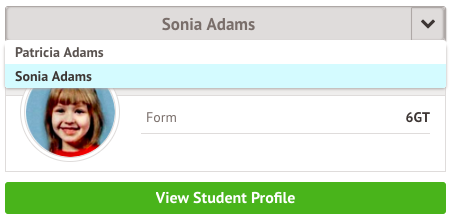
On the left-hand side of your homepage, click the arrow next to the current child's name. Select the other child.
When doing this for the first time, you will need to enter your other child’s date of birth.
On the Parent App
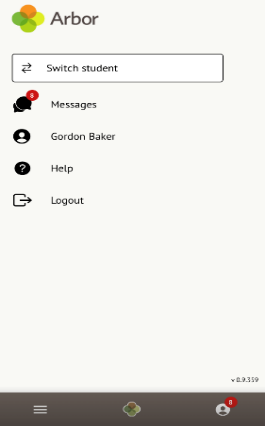
Click the profile icon at the bottom right of your screen and click Switch student.
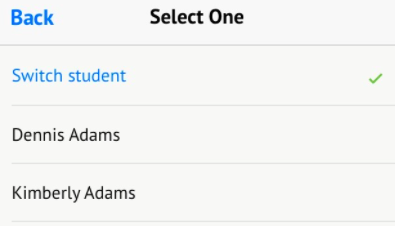 Choose which child you would like to view.
If this is the first time you are viewing information for this child, you will have to confirm their birth date.
Available data on your child
If your child's school has granted access, you will be able to click on different parts of the home page to view more data on your child.
For example, clicking the attendance percentage will bring up the attendance page which breaks down the attendance figures into present, late, or absent.